

Translate:

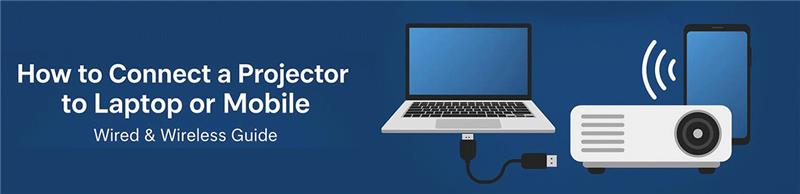
How to Connect a Projector to a Laptop or Mobile: A Simple Step-by-Step Guide
Projectors are incredibly useful tools, whether you're giving a business presentation, enjoying a movie night, or sharing content in a classroom. But if you are new to using one, figuring out how to connect it to your laptop or mobile device can be a bit confusing.
In this guide, we'll walk you through the steps for connecting your laptop and mobile phone to a projector, both wired and wirelessly.
How to Connect a Projector to a Laptop
1. Check Your Laptop's Ports
>> Laptops have one of the following video output ports:
>> HDMI (common and high-quality)
>> VGA (older laptops)
>> USB-C or Thunderbolt (newer laptops, especially Macs)
Your projector will also have one or more of these ports. Match the available ports between both devices.
2. Get the Right Cable or Adapter
>> Depending on your ports, you may need:
>> HDMI to HDMI cable
>> VGA to VGA cable
>> USB-C to HDMI adapter
3. Connect the Cable
Plug one end of the cable into your laptop and the other into the projector.
4. Turn On Both Devices
Power on your laptop and projector. The projector should detect the input automatically. If not, use the projector remote or on-device buttons to select the correct input source (e.g., HDMI 1, VGA).
5. Adjust Display Settings
On your laptop:
Windows: Press Windows + P and select Duplicate, Extend, or Second screen only.
Mac: Go to System Settings > Displays and arrange your display as needed.
And you're all set!
How to Connect a Mobile Phone to a Projector
Depending on your projector type, you can connect your smartphone either wired or wirelessly.
Wired Connection (Using a Cable)
For Android:
>> Use a USB-C to HDMI cable or adapter.
>> Plug the HDMI into the projector and USB-C into your phone.
>> Select the right HDMI source on the projector.
For iPhone:
>> Use a Lightning to HDMI (Apple Digital AV) adapter.
>> Connect your iPhone to the adapter, then connect the HDMI cable from the adapter to projector.
Note: Not all phones support HDMI output. Check your phone's specs first.
Wireless Connection (Using Wi-Fi or Bluetooth)
1. Using Built-In Screen Mirroring (Smart Projectors)
Many modern projectors support AirPlay, Miracast, or Google Cast.
iPhone: Swipe down for Control Center-> Tap Screen Mirroring -> Choose your projector.
Android: Use Smart View, Cast, or Screen Share from the Quick Settings panel.
2. Using a Streaming Device
If your projector doesn't support wireless casting, plug in a device like:
>> Chromecast
>> Amazon Fire Stick
>> Apple TV
Then cast your phone's screen or specific apps like YouTube or Netflix directly to the projector.
Final Tips
>> Ensure both devices are on the same Wi-Fi network for wireless connections.
>> Keep your projector firmware updated.
>> Use good-quality cables to avoid flickering or connection issues.
>> Close unused apps to reduce lag when casting.
Wrapping Up
Connecting a projector to a laptop or smartphone is easier than ever, with multiple options to suit your setup. Whether you're using HDMI cables or going wireless with screen mirroring, this guide should have you projecting in no time.
Got questions or need help troubleshooting? Drop them in the comments below!
Would you like this content formatted for a PDF, social media post, or website article? I can help with that, too.
Top Sellers
New Arrivals

Sony L-Series 9000lm WUXGA Laser Projector, VPL-FHZ91L
Sony 3400lm 4K Native Laser Projector with XR Processor, VPLXW8100B.UC7
Sony XW 2000lm 4K Native SXRD Laser Home Theatre Projector, VPL-XW5000ES
Sony 5800lm WUXGA Laser Projector with 4K 30P Input, VPL-PHZ51
Sony 7000lm WUXGA High-Brightness Laser Projector, VPL-PHZ61
Sony XW 3200lm 4K Native SXRD Laser LCD Projector, VPL-XW7000ES
Sony 10000lm WUXGA Interchangeable Lens Laser Projector, VPL-FHZ101L
Epson EB-E12 3600lm XGA 3LCD Business & Education Projector
Epson EB-W56S 3700lm WXGA 3LCD Short Throw Projector for Small Rooms
Epson EB-W55 4000lm WXGA 3LCD Projector with Built-in Wi-Fi




 +91 9999049135

