

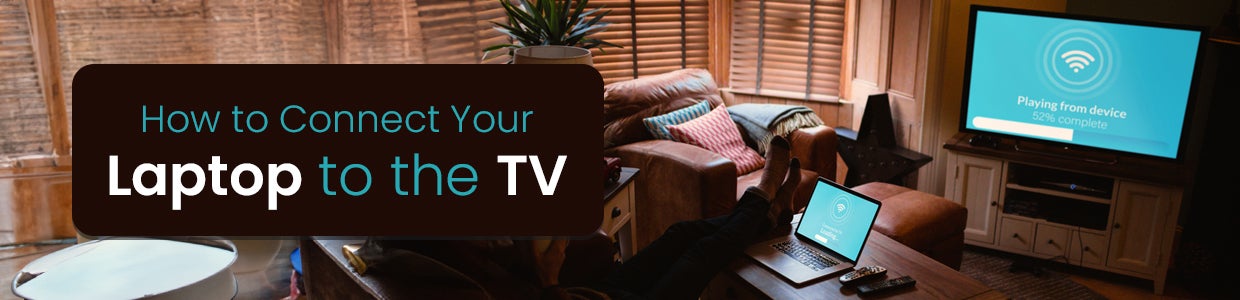
How to Connect Your Laptop to the TV - A Step-by-Step Guide
Screen mirroring from a laptop to a TV has many great benefits. By wirelessly projecting your laptop's display onto your TV screen, you can turn your living room into an immersive entertainment center or a boardroom. Screen mirroring is also quite simple to set up with most modern laptops and smart TVs.
There are two main approaches to wirelessly mirroring your laptop to a TV - using smart TV software or a wireless casting device. Most late-model TVs have screen mirroring functionality built-in, allowing you to directly cast your laptop's display to the bigger screen. For older TVs without native support, affordable third-party wireless casting devices like the Google Chromecast can enable screen mirroring capabilities.
With just a few quick settings adjustments, you can mirror your laptop to seamlessly enjoy videos, photo slideshows, games, web browsing and more in full HD quality on your TV. Screen mirroring comes in extra handy when wanting to showcase presentations, documents, or family photos on the larger display for many viewers. As most smart TVs and casting devices support mirroring across various operating systems, the possibilities are very versatile.
Necessary Equipment On How To Screen From Laptop To TV
Before connecting your devices, make sure you have the proper equipment. At the very least, you?ll need:
A laptop - Any relatively modern laptop should work, provided it has the appropriate ports and wireless connectivity support to allow you to cast your laptop screen to the TV.
A TV -A smart TV works best, but any TV with HDMI ports can connect to your laptop to display the cast laptop screen.
Cables - For a wired connection, you?ll want an HDMI cable compatible with both devices. Make sure it's long enough to comfortably reach from your laptop to TV to display the cast laptop screen.
For wireless options, you may also need to verify that both your laptop and TV have WiFi Direct/Miracast or AirPlay capabilities enabled to allow wireless screen mirroring from your laptop to your TV. Most modern laptops and smart TVs support these protocols out of the box but double-check before trying to connect if you experience any issues casting your laptop screen.
Wirelessly Connecting Your Laptop to Your TV
If both your laptop and TV support wireless display standards like WiFi Direct or AirPlay, connecting them to cast your laptop screen is a breeze. Here are the basic steps
On your smart TV:
1. Using your remote, select the input labeled ?Screen Mirroring?, ?Cast?, or something similar from the input menu. This may be under a ?Sources? or ?Input? option.
2. An available connections menu should appear. If not, you may need to enable screen mirroring in your TV device settings to allow casting laptop screen to TV.
On your Windows laptop:
3. Click the Action Center icon in your system tray and connect to the same WiFi network as your TV to enable wireless screen sharing from laptop to TV.
4. Go to Settings > Devices > Connected devices and click ?Add a device? to enable wireless screen mirroring laptop to TV.
5. Select your TV from the list of available devices to enable casting a laptop screen on the TV.
On your Mac laptop:
6. Click the AirPlay icon in your menu bar, often next to the WiFi and Bluetooth icons, to start casting laptop to smart TV.
7. Select your TV from the list of available devices to enable wireless screen mirroring from laptop to TV.
And that's it! Your laptop display should now be mirrored directly on your TV wirelessly thanks to the wireless screen sharing from your laptop to TV. Pretty painless, right?
Connecting Your Laptop to Your TV Via HDMI Cables
Connecting your Windows or Mac laptop to your TV via HDMI cable is just as easy. Here?s how to cast a laptop screen on TV:
On your TV:
1. Make sure your TV is powered on to display the projected laptop screen.
2. Connect one end of your HDMI cable to the HDMI port on the back of your TV. And that's how to cast a laptop to TV.
On your Windows laptop:
3. Connect the other end of the HDMI cable to the HDMI port on your laptop. This is often along the side or back edge.
4. Press the Windows key + P and select ?Duplicate? from the menu to mirror your cast laptop screen to the TV.
On your Mac laptop:
5. Connect the HDMI cable to your laptop?s HDMI port, Thunderbolt port (with an adapter), or USB-C port to display the projected laptop screen on the TV.
6. Click the Apple icon > System Preferences > Displays and select ?Mirror Displays? to enable laptop-to-TV screen mirroring.
Once connected via HDMI cable, your Windows or Mac laptop screen should now be displayed on your TV as well, thanks to the laptop-to-TV screen mirroring via HDMI.
Adjusting Display Settings
You?re all connected, but you may notice that text and images don?t look as crisp as they could due to scaling issues between your laptop and TV displays when mirroring cast laptop screen to TV. Here are some tweaks you can make to optimize the viewing experience:
1. In your laptop?s display settings, choose the highest resolution supported by both devices. This is often 1080p Full HD or 4K UHD. Higher resolutions result in sharper images and text on the cast laptop screen.
2. Adjust the zoom or scaling settings on your laptop to better match your TV size. We find 125% or 150% works well to display cast laptop screens. This helps size items appropriately.
3. Play with your TV picture settings like brightness, contrast, and backlighting. We prefer brighter, more vivid colors to make videos pop on mirrored laptop screens.
4. Try changing your laptop?s display layout to ?Extended? instead of ?Duplicate?. This lets you put apps like a video player on the TV while using other apps on your laptop display, enabling an effective projected laptop screen on the TV.
With a few adjustments, you can tweak the display to make the mirrors of your desktop look great when casting a laptop to the smart TV.
Usage Tips On How To Screen Share From Laptop To TV
Now for some general tips once you?re all connected to the mirror laptop screen on TV:
Sit back and relax! Place your laptop somewhere convenient, grab your wireless mouse and keyboard, and sit on your couch to comfortably view your cast laptop screen on the TV.
Stream movies and shows from services like Netflix and Hulu for a home theater experience of your mirrored laptop screen. Be sure to use the highest quality stream your internet connection can handle to enjoy the cast laptop screen on the TV.
Connect wireless Bluetooth speakers to your laptop to pump up the volume on your TV displaying the projected laptop screen. The improved sound and picture make movies way more immersive on cast laptop screen.
Play desktop computer games on the TV for a more engaging experience of your mirrored laptop screen. An Xbox controller connected to your laptop works great with game screen casting from laptop to TV.
Load up a slideshow from your last vacation and gather the whole family to view photos together on the big screen displaying your cast laptop screen. It makes memories more vivid and fun to discuss.
Give business presentations straight from your laptop while using the TV as a display for the conference room to show your projected laptop screen on TV. The TV projection makes it easier for everyone to see cast laptop screen.
Anything you can do on your laptop display normally now works on the TV with minimal effort thanks to laptop-to-TV screen mirroring techniques. It opens up a whole world of possibilities to leverage cast laptop screens on TV.
Connect Laptop To TV Wireless: Troubleshooting Tips
Despite how easy connecting your devices can be, you may run into an occasional technical hitch when trying to cast your laptop to TV. Try these troubleshooting tips if your laptop won?t connect to the TV:
- Reboot both devices and try reconnecting from scratch. Sometimes a fresh start fixes software quirks preventing laptop screen from mirroring to TV.
- Ensure WiFi is enabled on both devices if trying to wirelessly connect the laptop to the TV. Being on the same WiFi network is required for a wireless projected laptop screen.
- Double-check physical cable connections and port compatibility if wired. Try a different HDMI cable if issues persist displaying laptop screen on the TV.
- Update your TV, laptop, wireless card, and graphics drivers to eliminate any software-related issues preventing screen mirroring from laptop to TV. Driver conflicts can prevent connections for the projected laptop screen.
- Adjust your TV source/input mode if the connection succeeds but no image appears when casting the laptop screen to TV. You may be on the wrong input.
- Change your laptop?s screen resolution and scaling settings if the image looks distorted or unsized on the TV when mirroring the laptop screen.
- Consult your device manuals or search online tech forums for specific connectivity issues with your hardware that prevent cast laptop to smart TV.
With some tinkering and troubleshooting, you should be able to get your laptop happily connected to your television?s display to leverage cast laptop screen capabilities.
Conclusion: Laptop To TV Screen Mirroring
So, this article was your answer to how to cast my laptop to TV. As you can see, linking your laptop to your TV is a straightforward process with the right gear and software in place to allow you to cast a laptop screen and leverage laptop-to-TV screen mirroring. Following the steps outlined above, you?ll be streaming, mirroring, and projecting content from your laptop to TV to display your cast laptop screen in no time.
Whether your goal is entertainment, productivity, or something else entirely, this handy tech combo helps realize the possibilities with laptop screen mirroring and projected laptop screen. The setup was quick and mostly painless in my experience. The viewing enjoyment, flexibility, and utility gained make this integration well worth the minimal effort to display a cast laptop screen on your TV.
So grab your laptop and TV remote to test out these techniques for yourself. Your big screen is just waiting to become an enhanced extension of your mobile computer to leverage cast laptop screen capabilities to the max! Have fun exploring the versatility that laptop-to-TV connectivity provides for mirrored laptop screens, screen sharing from Windows laptop to TV, and more!
Popular Laptops Brand - Acer Laptops | HP Laptops | Lenovo Laptops | Asus Laptops
Top Laptop Related Searches - Laptops Under 30000 | HP Laptops Under 50000 | Laptops Under 50000 | 14 Inch Laptops | 13 Inch Laptops | 16 Inch Laptops | 512 GB SSD Laptops | 1 TB SSD Laptops | 256 GB SSD Laptops | 4GB RAM Laptops
Laptop Related Devices - Tablets | Keyboards | RAM | Computer Mouse | LED Monitors | Laptop Tables | Graphic Cards | Laptop Chargers | USB Hubs & Cleaning Kits | Webcams
Related Laptop Articles -
What are the Top Dell Laptops and their unique specifications?
What are the Top Acer Laptops and their unique specifications?
Top Sellers






 +91 9999049135

